The Vehicle Prefab
To simplify development, the Spatial Experience SDK provides a centralized Vehicle prefab for Unity. This prefab is automatically driven by the real-world car’s physical motion tracking sensors, translating live acceleration, velocity, and orientation data into smooth coordinate shifts in your virtual scene.
A camera rig must be parented directly under the Vehicle's CameraRigParent child object to align its orientation and position. This establishes the passenger's tracking coordinate anchor and optionally applies full-vessel rotations (roll, pitch, and yaw) depending on your project's configuration settings. Decorative models, cockpits, or user interfaces can be attached directly to either the root or child transforms.
---
config:
  flowchart:
    subGraphTitleMargin:
      bottom: 30
---
flowchart TD
    %% Telemetry Inputs
    subgraph Telemetry_Stream ["1. Sensor Telemetry Input"]
        State["StateReceiver.VehicleSensorState <br> (GPS, speed, yaw rate, lateral/long forces)"]
    end

    subgraph Vehicle_Prefab ["Vehicle Prefab"]
        %% Vehicle Prefab Root
        subgraph Vehicle_Root ["2. Root Prefab GameObject (Positional Scopes)"]
            Root["Vehicle Position <br> (Handles full 3D world translation)"]
            WSM["World Shift Manager <br> (Resets scene origin to 0,0,0 to prevent jitter)"]
            Root --- WSM
        end

        %% Two Branches
        subgraph Prefab_Branches ["3. Sub-Transform Children (Rotational Scopes)"]
            Heading["1. Heading Transform <br> (Rotates around Y-axis only / Yaw-only)"]
            CameraRig["2. CameraRigParent Transform <br> (Handles device rotation & stabilization)"]
        end

        %% Alignment
        subgraph Target_Assets ["4. Component & Camera Attachments <br> (Empty by default: Slot in your own models & camera rig here!)"]
            Cockpit["Cockpit Models / UI Canvas <br> (Locks to vehicle direction, stays level)"]
            Cam["Main Camera <br> (Aligns virtual view and tracks head-movements)"]
        end
    end

    Telemetry_Stream -->|Drives translation| Vehicle_Root
    Vehicle_Root -->|Propagates position| Prefab_Branches
    Heading -->|Childed under| Cockpit
    CameraRig -->|Childed under| Cam

    %% Styling (Vibrant, highly colored borderless theme)
    style Telemetry_Stream fill:#e0f2fe,stroke-width:0px
    style State fill:#0284c7,stroke-width:0px,color:#fff

    style Vehicle_Root fill:#f3e8ff,stroke-width:0px
    style Root fill:#7c3aed,stroke-width:0px,color:#fff
    style WSM fill:#9c27b0,stroke-width:0px,color:#fff

    style Prefab_Branches fill:#fce7f3,stroke-width:0px
    style Heading fill:#db2777,stroke-width:0px,color:#fff
    style CameraRig fill:#ec4899,stroke-width:0px,color:#fff

    style Target_Assets fill:#dcfce7,stroke-width:0px
    style Cockpit fill:#16a34a,stroke-width:0px,color:#fff
    style Cam fill:#15803d,stroke-width:0px,color:#fff
    style Vehicle_Prefab fill:#E5E5E5,stroke-width:0px
Tip
You can instantiate a new, fully configured Vehicle GameObject in your scene hierarchy from Unity's right-click context menu: Create > holoride > Vehicle.
The root GameObject of the prefab is Vehicle (formerly HoloridePlayer). It performs the 3D translation of the vehicle through the virtual world (the positional scope) and propagates this position to all nested children.
By default, the Heading and CameraRigParent sub-transforms are completely empty inside the prefab. They are designed as the structural entry points for you to slot in your own custom vehicle/cockpit models and your own virtual camera rig (establishing their rotational scopes):
Heading (Your Vehicle Model & Cockpit Entry Point)
Any models or components (such as your car's interior cockpit mesh, decorative models, dashboard UI, or particle trails) attached to the Heading child will rotate exclusively around the vertical (Y) axis, aligning with the vehicle's heading direction (yaw).CameraRigParent (Your Camera Rig Entry Point)
Your custom camera rig (such as the Main Camera, XR origin, or HMD/VR camera hierarchy) must be childed directly under the CameraRigParent. This child handles head-tracking reference offsets and adapts its rotation dynamically to the project's tracking settings.
Device Tracking Reference Settings
To configure how the camera rotates relative to the vehicle's real-world motion, navigate in Unity to Project Settings > holoride > Device Tracking Reference. It offers three options:
- World: No rotational offsets are applied to the parent. This setting is ideal for device specific Unity SDKs for headsets and handhelds which compute their own standalone IMU rotations and apply it directly to the Unity Camera rig.
- Vehicle: The camera rotates fully with the vehicle around all three axes (including roll and pitch). For example, if the car accelerates, brakes, or tilts on a hill, the camera rig tilts correspondingly in the virtual scene.
- Vehicle Yaw Only: Deactivates roll and pitch rotations for the camera, applying only the heading direction (yaw). This results in a calmer, highly stabilized visual horizon, but the camera will feel detached from the real-world vehicle's subtle pitch/roll tilts.
Stylized Vehicle Rotation (Motion Exaggeration)
You can exaggerate, damp, or customize the vehicle's physical movements in virtual space to create highly stylized, comfortable, or thrilling experiences—such as simulating an agile jet fighter that leans heavily into sharp bends, or a boat that tilts in the opposite direction of a turn.
To implement custom rotation filters:
- Create a new empty GameObject under the Vehicle root in the Hierarchy (Right-click > Create Empty).
- Attach the Stylized Vehicle Rotation component to this new child object.
- Place your cockpit meshes, vehicle chassis, or interactive interfaces inside this stylized child object. They will now dynamically react to your customized motion curves.
Accessing Vehicle Sensors via Code
For custom gameplay mechanics, particle emitters, speedometers, or interface feedback, you can query the active tracking backend programmatically using the following C# API:
var sensorState = StateReceiver.CurrentBackend.VehicleSensorState;
The resulting VehicleSensorState instance provides access to the following live metrics:
GeoCoordinate: The vehicle's exact latitude and longitude on the earth's surface.VehicleSpeed_Kmh: The current physical speed of the vehicle in km/h.VehicleHeading_Deg: The heading direction (yaw) provided by GPS and motion fusion.YawRate_DegPerSec: Rotational velocity around the vertical (Y) axis in degrees per second.LongitudinalAcceleration_ms2: Forward and backward acceleration forces in m/s².LateralAcceleration_ms2: Side-to-side (centrifugal) acceleration forces in m/s².VerticalAcceleration_ms2: Up and down vertical acceleration forces (e.g., bumps or elevation changes).VehiclePitch_Deg: Current vehicle pitch (forward/back tilt) in degrees.VehicleRoll_Deg: Current vehicle roll (side-to-side tilt) in degrees.
World Shift Manager
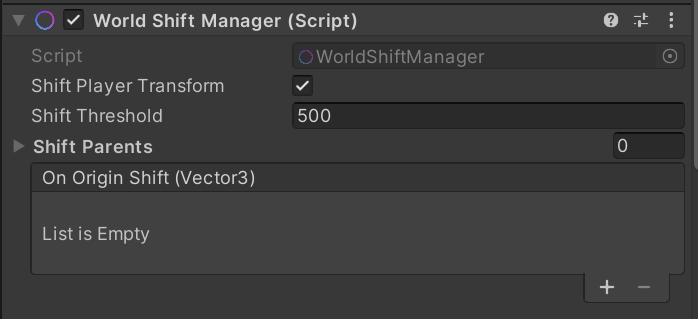
The World Shift Manager is a core optimization component attached directly to the Vehicle root GameObject. As the player travels long distances in the real world, the virtual vehicle will drift thousands of meters away from Unity's coordinates origin, leading to floating-point precision errors and rendering artifacts.
To prevent this:
- The World Shift Manager monitors the vehicle's position.
- If the vehicle moves further from the origin than a user-defined distance threshold, the component instantly shifts the vehicle and all active procedural objects back to
(0, 0, 0). - GameObjects parented under the Vehicle prefab, as well as those generated dynamically by the Elastic Scene Generator, are automatically registered for origin-shifting.
- Custom spawned elements or independent transforms can be registered manually using the
AddShiftParent(Transform)API or the component's inspector field.