Object Pooling
Procedural generation demands high-frequency instantiation. Dynamically spawning and destroying hundreds of trees, rocks, and buildings as the player moves generates massive garbage collector (GC) overhead and memory fragmentation—resulting in frequent frame-drops and micro-stutters.
To prevent this, the Spatial Experience SDK features an automated Elastic Object Pooling system. By cycling active and inactive objects rather than allocating new heap blocks, you completely eliminate garbage-collection spikes and guarantee smooth, high-fidelity visuals on mobile devices.
1. Dynamic Pooling vs. Static Pooling
In traditional game development, an object pool is pre-warmed with a fixed number of instances. However, in an ever-changing, procedural world, there is no way to pre-calculate a fixed number of objects that will satisfy every potential map cell transition.
To resolve this:
- The Elastic Object Pool Manager automatically warms up a small fallback quantity of assets.
- If the player travels through an extremely dense zone (such as a massive city query or thick forest) that demands more assets than are currently available in the pool, the pool automatically grows dynamically to satisfy the CPU demand.
- To prevent infinite heap growth when travelling at maximum vehicle speeds, you can assign individual
MaxPoolSizethresholds to each asset category.
2. Setting Up a Pooled Prefab
Most pooling logic in the SDK is fully automated. You only need to declare which of your prefabs should be pooled:
- Locate your custom Unity Prefab (forest tree, rock, streetlight, etc.) in the project's Asset database.
- Add the
PooledObjectcomponent directly to the root of the Prefab.
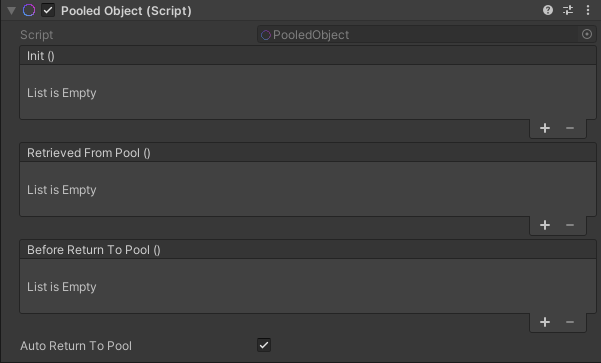
That's it! Any spawner nodes inside your Elastic Graph that reference this prefab will now automatically route their instantiation calls through the pool manager instead of standard Unity Instantiate() calls.
3. Managing the Pooled Object Lifecycle
Because pooled prefabs are cycled rather than destroyed and re-created, their scripts do not execute Awake() or Start() loops more than once. Instead, their active state is toggled on and off:
- Trigger Actions via Unity Events: Standard Unity runtime callbacks should be mapped to
OnEnable()andOnDisable(). - Configure Pooled Event Callback Triggers: To enable no-code workflows, the
PooledObjectcomponent exposes three distinct, editor-serializable UnityEvents:
| Name | Trigger Phase | Description |
|---|---|---|
| Init | Creation | Invoked once when the prefab instance is originally created and added to the pool. Use this for one-time setup calls (e.g. searching component references). |
| Retrieved From Pool | Spawning | Invoked when the asset is fetched from the pool. Use this to prepare materials, randomize scale variants, or trigger "spawn" audio effects before the asset becomes active. |
| Before Return To Pool | Despawning | Invoked right before the object is deactivated and recycled back into the pool. Use this to trigger exit animations (e.g. scaling down or sinking into the ground) before deactivation. |
Important
When retrieved from the pool, an object's active state is automatically matched to its Prefab’s default state. Conversely, when recycled, its active state is instantly set to false.
4. Custom Entry/Exit Transitions
By default, the spawner automatically recycles objects as soon as they fall outside the boundaries of the spawner's Moving Grid.
If your prefab requires a smooth exit effect (such as playing a 1-second fading animation) before deactivation, you must prevent immediate recycling:
- Uncheck the
Auto Return To Poolcheckbox on thePooledObjectcomponent. - Build a custom transition script that intercepts the despawn event.
- When your custom exit transition finishes, manually trigger recycling by calling the public C# API:
PooledObject.ReturnToPool();
Below is a complete, production-ready C# helper script to implement smooth, non-blocking scale-in and scale-out transitions using the Before Return To Pool event:
using System.Collections;
using Holoride.ElasticSDK;
using UnityEngine;

public class MyPoolingAnimTester : MonoBehaviour
{
    public float animTimer = 0.0f;
    public float animDuration = 5.0f;
    public PooledObject poolingComponent;

    private void Start()
    {
        this.poolingComponent = this.GetComponent<PooledObject>();
    }

    public void StartAnimOut()
    {
        this.StopAllCoroutines();
        this.StartCoroutine(this.AnimOut());
    }

    public void StartAnimIn()
    {
        this.StopAllCoroutines();
        this.StartCoroutine(this.AnimIn());
    }

    private IEnumerator AnimOut()
    {
        var startPosition = this.transform.localPosition;
        while (this.animTimer < this.animDuration)
        {
            this.animTimer += Time.deltaTime;
            var animProgress = this.animTimer / this.animDuration;
            this.transform.localPosition = Vector3.Lerp(startPosition, startPosition + Vector3.down * 3.0f, animProgress);

            yield return null;
        }
        this.animTimer = 0.0f;
        var returnStatus = this.poolingComponent.ReturnToPool();
    }

    private IEnumerator AnimIn()
    {
        var startPosition = this.transform.localPosition;
        this.transform.localPosition = new Vector3(startPosition.x, -1.0f * 3.0f, startPosition.z);
        while (this.animTimer < this.animDuration)
        {
            this.animTimer += Time.deltaTime;
            var animProgress = this.animTimer / this.animDuration;
            this.transform.localPosition = Vector3.Lerp(startPosition + Vector3.down * 3.0f, startPosition, animProgress);

            yield return null;
        }
        this.animTimer = 0.0f;
    }
}
Warning
Disabling the automated return process can cause your pools to grow rapidly if objects are left active long after crossing the Spawner's Moving Grid. If this delay is too long, the pool will continue expanding dynamically, which is especially problematic at high vehicle travel speeds. Ensure you always assign a reasonable MaxPoolSize threshold to prevent excessive memory usage.
5. Elastic Object Pool Manager Setup
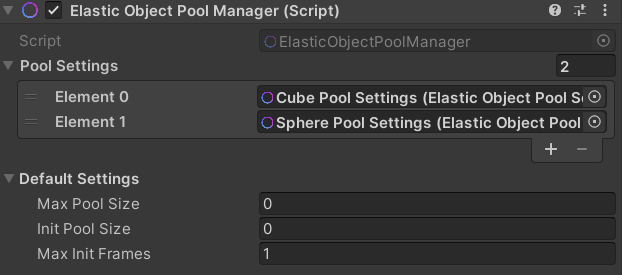
The Elastic Object Pool Manager component coordinates all individual pools and sits directly on the ElasticSceneGenerator prefab.
Note
If you omit this manager component while leaving PooledObject components attached to your prefabs, the SDK will compile safely but print console warnings explaining that the objects are falling back to standard, non-pooled instantiation. This allows you to rapidly benchmark your scene performance with and without pooling enabled.
Hierarchy Cleanliness Best Practices:
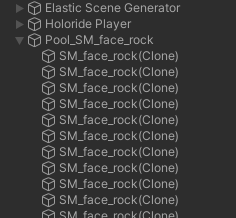
At runtime, the pool manager instantiates a flat structure of root GameObjects inside your active Unity Scene hierarchy, following the standard naming syntax: Pool_<PrefabName>.
Important
Keep Pools at Top-Level: Never child or parent these pool containers under nested hierarchy levels. Moving them into lower branches forces Unity to recursively update child-parent transform structures during the SDK's periodic origin World Shifts, causing immediate frame rate drops and CPU overhead. For more information, review Unity's official Spotlight best practices: Optimizing the Hierarchy.
6. Granular Pool Configuration Settings
On the Elastic Object Pool Manager component, you can configure both Pool Settings and Default Settings via scriptable settings assets.
While the Default Settings act as global fallbacks, the Pool Settings allow you to associate customized allocation metrics on a per-prefab basis:
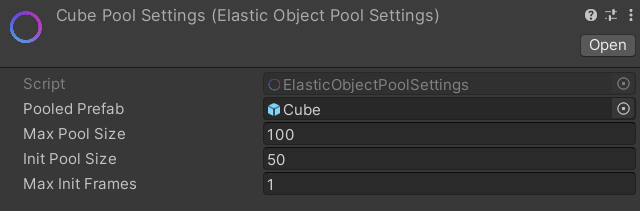
MaxPoolSize(int): The maximum number of instances this specific pool is allowed to allocate. Setting this to0allows unlimited, dynamic growth. Supports real-time adjustments at runtime.InitPoolSize(int): The pre-warmed quantity of instances allocated immediately on scene initialization to prevent first-spawn stutters.MaxInitFrames(int): The maximum number of frames over which the pre-warmed allocation is distributed. Setting this to0instantiates all pre-warmed objects inside a single frame, which can cause a small freeze during scene startup. Setting this to a value greater than0(e.g.30) distributes the instantiation over multiple frames, ensuring a smooth loading screen.
Moving On
Congratulations! You have completed the World Creation track of the User Guide.
To take your projects further and explore custom programmatic extensions, proceed to the next track:
- Code – Deep-dive into our comprehensive C# APIs, coordinate systems, and custom event callbacks.