Trajectory Estimation
The Trajectory Estimation package provides prediction models and components to estimate short-horizon vehicle poses. It lets developers place or move GameObjects along the predicted future path of the vehicle.
Installation
- Open the Unity Package Manager.
- Add the package
com.holoride.elasticsdk.trajectoryestimationto your project.
Getting Started
Creating a Trajectory Parent
The package includes a prefab that can be added via the Hierarchy context menu:
- Right-click inside your active Hierarchy window (or open the top menu
GameObject). - Select
holoride->Trajectory Parent. - This instantiates the
TrajectoryParentprefab. Attach GameObjects under this parent transform to move them along the predicted trajectory.
Component Reference
TrajectoryParent
The TrajectoryParent MonoBehaviour computes the trajectory prediction. It queries the active StateReceiver sensors, calculates the constant yaw rate and longitudinal acceleration, and updates the GameObject's position and rotation on LateUpdate.
Serialized Properties
| Property | Inspector Name | Description | Default |
|---|---|---|---|
SecondsAhead |
Seconds Ahead | The time horizon in seconds to predict the future vehicle pose. | 2.0 |
TurnRateFactor |
Turn Rate Factor | The multiplier applied to the vehicle's yaw rate. | 1.0 |
Offset |
Offset | The local translation offset (Vector3) relative to the vehicle's heading rotation where the prediction starts. | (0,0,0) |
SmoothingFactor |
Smoothing Factor | The visual smoothing strength. 0 disables smoothing (instant snap), larger values provide heavier smoothing. |
1.0 |
Scene View Gizmos
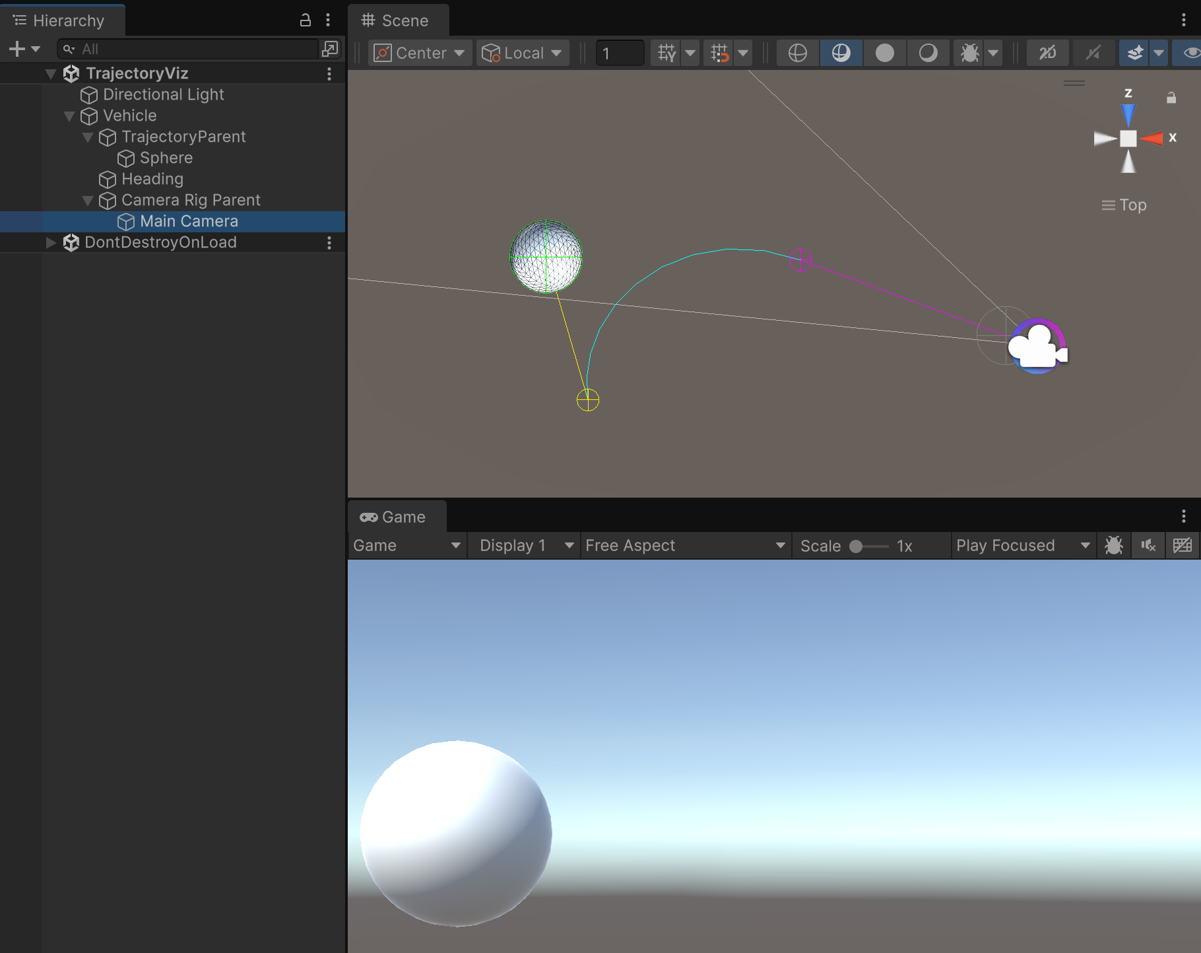
When selecting the TrajectoryParent GameObject, a debug visualization is rendered in the Scene view:
- The Magenta Line: Draws a straight line from the vehicle's center position to the configured local
Offsetposition. - The Cyan Curved Line: Traces the raw predicted trajectory from the offset position to the
SecondsAheadtime horizon. - The Gray Sphere: Represents the vehicle's current real-world origin position.
- The Yellow Line: Connects the raw estimated target position to the smoothed GameObject position, showing the interpolation offset from the
SmoothingFactorparameter. - The Green Sphere: Represents the smoothed position of the
TrajectoryParentGameObject.