Background Fading (Built-In Render Pipeline)
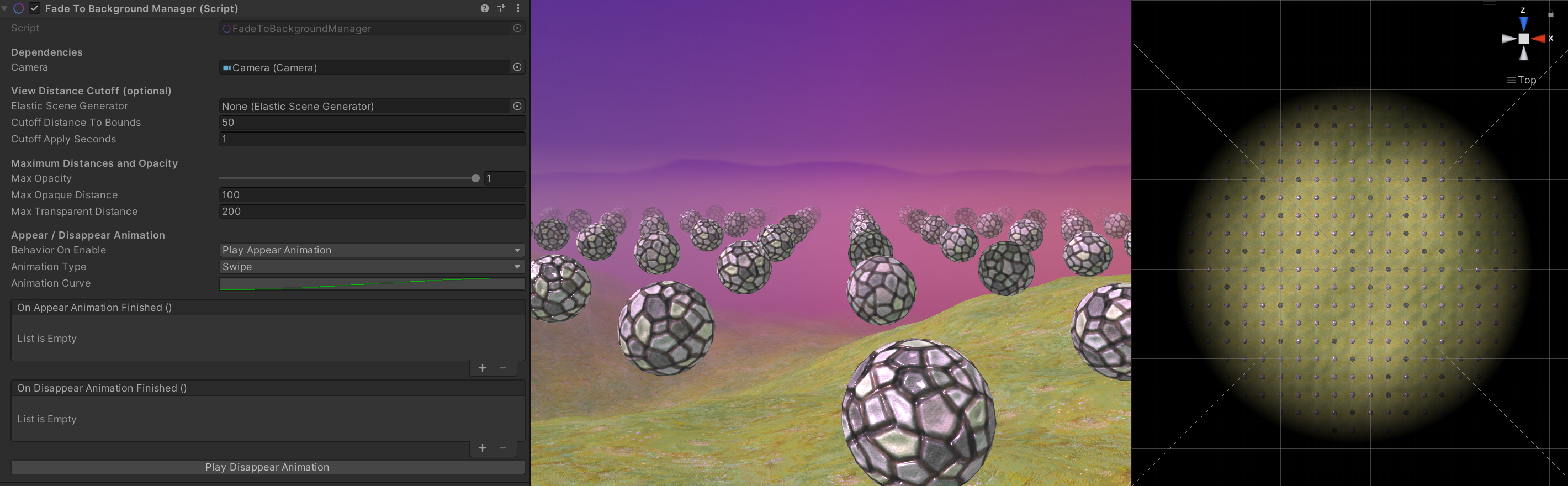
The Background Fading support package provides a set of shaders and a controller script to fade distant, procedurally generated geometry into the skybox rather than a solid color fog. This helps conceal pop-in artifacts in infinite or procedural scenes with minimal performance impact.
The fading shaders calculate a depth-based distance gradient relative to a designated spatial center (such as the camera or vehicle position). Pixels on distant meshes are blended into the active skybox material or cubemap to mask the edge of the generated world.
Installation
- Open the Unity Package Manager in your project.
- Install the package
com.holoride.elasticsdk.fadetobackground.builtinrp. - (Optional) Import the provided sample scene directly from the Package Manager description panel to test the setup.
Usage
Applying Background Fading to your scene involves three simple steps:
- Apply Fading Shaders: Assign the provided
FadeToBackgroundshaders (such asFadeToBackground/Standard,FadeToBackground/Mobile-Bumped-Diffuse, orFadeToBackground/Nature/Terrain/Diffuse) to the materials of all objects that should fade in the distance. - Apply Skybox Shader: Create a skybox material using the
FadeToBackground/Skybox/Cubemapshader and assign it to your scene's active skybox in the Lighting window. - Add Controller: Attach the
BackgroundFadingcomponent to any active GameObject in your scene hierarchy (Add Component > holoride > BackgroundFading).
Important
Always ensure the BackgroundFading component is active in your scene when using the FadeToBackground/Skybox/Cubemap shader. Running the skybox shader without an active controller can result in visual smearing artifacts.
The BackgroundFading Component
The BackgroundFading component automates the creation, management, and attachment of background-clearing command buffers (CommandBuffer) to all active cameras matching your layer masks.
Parameters & Inspector Settings
| Parameter | Type | Description |
|---|---|---|
| Fading Center | Transform |
The spatial center around which materials fade (typically assigned to your Main Camera or the root Vehicle transform). |
| Affected Layers | LayerMask |
A layer mask defining which cameras will have the fading command buffer attached to them (evaluated against the camera's culling mask). |
| Opacity | float (0-1) |
The overall maximum opacity multiplier of the fading effect. |
| Opaque Distance | float |
The distance (in meters) from the fading center at which objects begin to fade out. |
| Transparent Distance | float |
The distance (in meters) from the fading center at which objects become completely transparent (blended 100% into the skybox). |