Custom Nodes
The node graph system of the Spatial Experience SDK is highly extensible. Although the SDK comes with a large number of pre-configured nodes, you can easily create custom nodes and workers to drive tailored procedural generation, gameplay hooks, or custom data processing.
This master guide covers both Generic Graph Nodes & Workers (using the asynchronous pipeline lifecycle) and Specialized Map Nodes (using double-buffered CPU/GPU coroutine processing).
Part 1: Generic Graph Nodes & Workers
To extend the node graph with a general-purpose custom behavior, you must implement two classes: a Node class (which defines the fields and input ports visible in the editor) and a Worker class (which handles the actual runtime computation).
1. Creating a Basic Custom Node
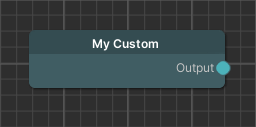
Create a new C# script named MyCustomNode.cs in your Assets folder. To appear in the node graph editor, inherit from Node<T>, passing your node class as the generic parameter:
using Holoride.ElasticSDK.Graph;

public class MyCustomNode : Node<MyCustomNode>
{
}
This is sufficient to register your node type in the graph editor's context menu.
2. Adding Fields and Input Ports
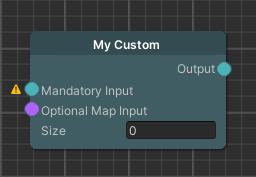
To connect nodes together and configure parameters in the Unity Inspector, declare fields and apply port attributes:
using Holoride.ElasticSDK.Graph;
using Holoride.ElasticSDK.Graph.Maps;

public class MyCustomNode : Node<MyCustomNode>
{
    [Input]
    public MyCustomNode MandatoryInput;

    [Input(optional: true)]
    public MapNode OptionalMapInput;

    public float Size = 5.0f;
}
[Input]Attribute: Exposes a connection port on the left side of the node.- Public Fields: Automatically render as editable inputs in the node's Inspector panel.
3. Implementing the Pipeline Node & Worker
To execute computations, your node must implement IPipelineNode and generate an associated runtime worker inheriting from PipelineWorkerBase:
using Holoride.ElasticSDK;
using Holoride.ElasticSDK.Graph;

public class MyCustomNode : Node<MyCustomNode>, IPipelineNode
{
    [Input]
    public MyCustomNode MandatoryInput;

    [Input(optional: true)]
    public MapNode OptionalMapInput;

    public float Size = 5.0f;

    public IPipelineWorker GeneratePipelineWorker()
    {
        return new MyCustomPipelineWorker(this);
    }
}

public class MyCustomPipelineWorker : PipelineWorkerBase
{
    private readonly MyCustomNode node;

    public MyCustomPipelineWorker(MyCustomNode node)
    {
        this.node = node;
    }
}
4. The Data-Processing Lifecycle
The PipelineWorkerBase executes a structured, multi-threaded lifecycle for every pipeline iteration (such as when loading new terrain cells or moving across boundaries):
---
config:
  flowchart:
    subGraphTitleMargin:
      bottom: 30
---
flowchart TD
    Start([Pipeline Iteration Starts]) --> CallInitRes("1. CallInitResources() <br> (Pre-allocate arrays / cache buffers)")
    CallInitRes --> CallInit("2. CallInit() <br> (Query parameters / Bind input workers)")

    %% Async Processing Loop
    CallInit --> GatherRes("3a. CallGatherResourcesAsync() <br> (Fetch web/disk assets / await downloads)")
    GatherRes --> ProcessAsync("3b. CallProcessAsync() <br> (Execute core algorithm / Run compute shaders)")

    %% Clean up
    ProcessAsync --> Finished{More cells to compile?}
    Finished -->|Yes| GatherRes
    Finished -->|No / Generation Done| CallCleanUp("4. CallCleanUp() <br> (Release textures / Dispose buffers)")
    CallCleanUp --> End([Iteration Complete])

    %% Styling (Borderless automatically via global CSS)
    style Start fill:#4CAF50,color:#fff
    style CallInitRes fill:#2196F3,color:#fff
    style CallInit fill:#2196F3,color:#fff
    style GatherRes fill:#9C27B0,color:#fff
    style ProcessAsync fill:#9C27B0,color:#fff
    style CallCleanUp fill:#FF9800,color:#fff
    style End fill:#f44336,color:#fff
    style Finished fill:#CCCCCC,stroke-width:0px
You can override these lifecycle methods in your custom worker:
using System;
using System.Threading;
using Cysharp.Threading.Tasks;
using Holoride.ElasticSDK;

public class MyCustomPipelineWorker : PipelineWorkerBase
{
    private readonly MyCustomNode node;
    public float OutputField;

    public MyCustomPipelineWorker(MyCustomNode node)
    {
        this.node = node;
    }

    // Called once to pre-allocate memory, textures, or arrays
    public override void CallInitResources() {}

    // Called to bind and cache references to other workers in the pipeline
    public override void CallInit() {}

    // Asynchronously downloads map chunks, fetches GIS assets, or reads disk data
    public override async UniTask<LoadResourceResult> CallGatherResourcesAsync(
        GenerationContext context,
        IProgress<float> onProgressUpdate = null,
        CancellationToken cancellationToken = default)
    {
        return LoadResourceResult.Success;
    }

    // Executes the core procedural algorithms using CPU calculations or compute shaders
    public override async UniTask CallProcessAsync(
        GenerationContext context,
        IProgress<float> onProgressUpdate = null,
        CancellationToken cancellationToken = default)
    {
        await UniTask.CompletedTask;
    }

    // Called when the generator stops to release unmanaged memory and native buffers
    public override void CallCleanUp() {}
}
5. Accessing Port Inputs & Outputs
To query data from upstream nodes connected in the graph, use the GetInput method inside your worker:
public override void CallInit()
{
    // Retrieve references to connected workers using port names
    var parentWorker = this.GetInput<MyCustomPipelineWorker>(nameof(MyCustomNode.MandatoryInput));
    var mapWorker = this.GetInput<MapWorker>(nameof(MyCustomNode.OptionalMapInput));

    if (parentWorker != null)
    {
        // Read public fields from connected workers
        this.OutputField = parentWorker.OutputField * this.node.Size;
    }
}
Part 2: Specialized Custom Map Nodes
A common requirement is writing custom Map Nodes—procedural generators that output a 2D grayscale float array (representing heightmaps, road masks, spawning density, etc.) matching the grid resolution configured in the active ElasticSceneGenerator.
To simplify map buffer allocation, synchronization, and multi-threading, the SDK provides specialized MapNode and MapWorker classes.
1. Minimal Custom Map Node Example
The following code is a complete example of a custom Map Node that encodes the geographic latitude of every cell pixel into a 2D Map:
using System.Collections;
using Holoride.ElasticSDK;
using Holoride.ElasticSDK.Graph.Maps;
using UnityEngine;

public class MyMapNode : MapNode
{
    public override IPipelineWorker GeneratePipelineWorker()
    {
        return new MyMapWorker(this);
    }

    private class MyMapWorker : MapWorker<MyMapNode>
    {
        public MyMapWorker(MyMapNode node)
            : base(node,
                provideDoubleBuffer: true,
                provideCPUBuffer: true,
                provideGPUBuffer: false) { }

        // The process function is called every pipeline update
        public override IEnumerator Process(GenerationContext context)
        {
            // Outsource calculations safely to a separate background thread
            yield return Utils.WaitForThread(() =>
            {
                int resolution = this.GenerationSettings.FilterResolution;

                for (int x = 0; x < resolution; x++)
                {
                    for (int z = 0; z < resolution; z++)
                    {
                        // Calculate UV coordinates of the map area
                        var uv = new Vector2((float)x / resolution, (float)z / resolution);

                        // Map the UV coordinate to its raw geographical latitude
                        var geoCoordinate = context.InnerBounds.GeoCoordinateAtUV(uv, context.Pivot);

                        // Write the computed height/density directly to the CPU buffer
                        this.SetCPUWriteBufferValue(x, z, (float)geoCoordinate.Latitude);
                    }
                }
            });
        }
    }
}
2. Double-Buffering & Multi-Threading
public MyMapWorker(MyMapNode node)
    : base(node,
        provideDoubleBuffer: true,
        provideCPUBuffer: true,
        provideGPUBuffer: false) { }
The specialized MapWorker constructor coordinates optimization properties:
- Double-Buffering (
provideDoubleBuffer: true): Keeps separate read and write buffers active. This allows rendering systems to safely read current map heights without stalling the pipeline while a background thread computes the next updates. - CPU Buffer (
provideCPUBuffer: true): Allocates a flat float array in CPU memory (ideal for direct array index arithmetic and interpolation queries). - GPU Buffer (
provideGPUBuffer: true): Allocates aComputeBufferon the GPU (ideal for writing high-performance compute shaders).
3. Thread Safety & Unity Coroutines
public override IEnumerator Process(GenerationContext context)
{
    yield return Utils.WaitForThread(() => { ... });
}
The Process() coroutine is the heart of a Map Node. It runs on every generation tick and can distribute workloads over multiple frames via yield. Using Utils.WaitForThread(), you can offload expensive nested array math onto a secondary worker thread, ensuring the Unity main render thread remains buttery smooth and stutter-free.
Warning
While thread-offloading is highly recommended, Unity APIs (like GameObject.Instantiate or reading transform.position) are not thread-safe and must be executed on the main thread before or after Utils.WaitForThread.
Summary
By connecting modular inputs and outputs, you can assemble complex procedurally generated worlds:
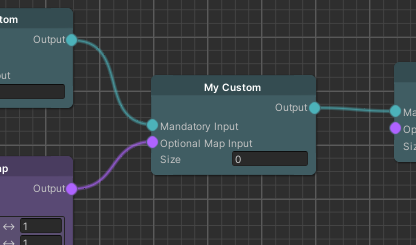
Whether you are writing lightweight generic scripts to coordinate game state transitions, or high-performance multithreaded double-buffered Map Nodes to sculpt procedurally generated terrains, the Spatial Experience SDK allows you to easily plug your custom C# code directly into the procedural world-generation pipeline.